1. Export an Audition marker file from Notetracks Pro
To export markers and comments from Notetracks Pro, click the Download button in your active session and select "NoteTracks.com > Audition Markers (.csv)".
2. Use the "Markörkonverterare" to convert the Audition marker file into a CSV file
Open the free Markörkonverterare, select "Audition" and set "convert" to "CSV for Google Sheets". Generate and download the file. Om du har problem med att konvertera filen kan du kontakta vår kostnadsfria support.
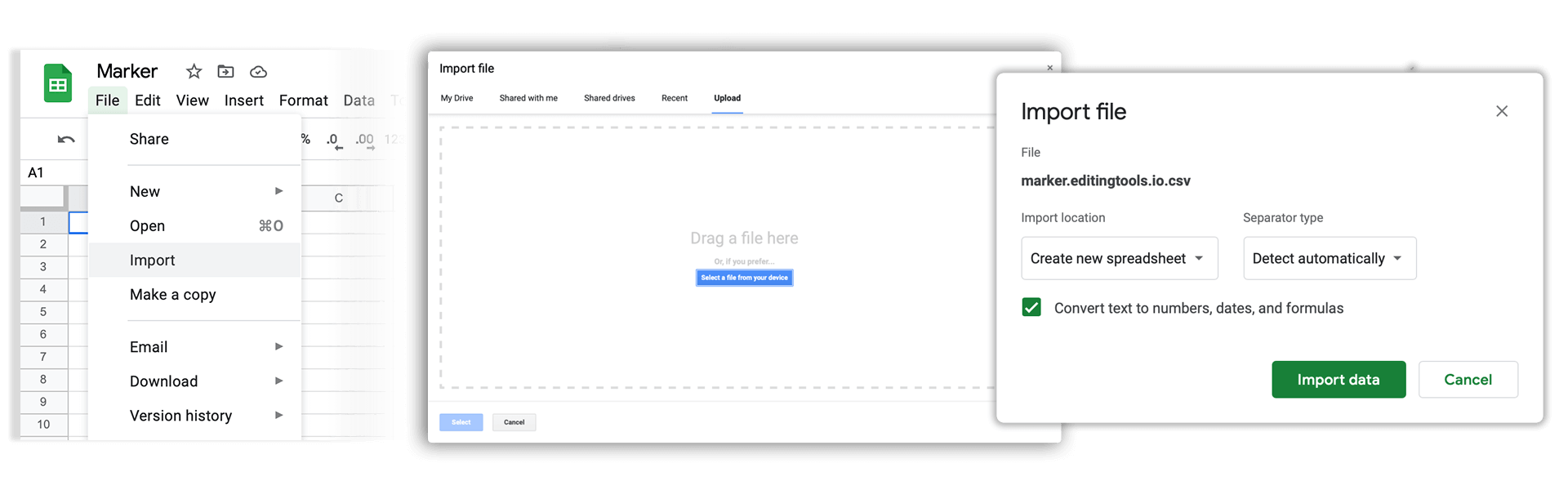
3. Import the CSV file into Google Sheets
Open Google Sheets and go to "File -> Import". Upload the generated CSV file and press "Import Data" to generate the Sheet with all markers.
🚀 Klart
Det var allt för den här gången! Om du tyckte att handledningen var användbar får du gärna dela den för att stödja oss. Om du har förslag på hur vi kan förbättra arbetsflödet, hör av dig!